
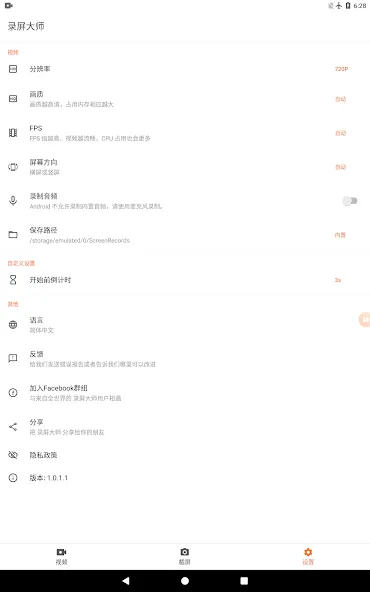
Screen Recorder is a recording application designed for Android devices. Users can adjust the resolution to ensure that recorded videos are clear and sharp. The bitrate can be customized, allowing for smooth recording even at high frame rates. The app supports over 80 languages and utilizes hardware-level screen brightness control to prevent the screen from turning off during the recording process. Users can also customize the app's theme to their preference. A floating control panel is available, providing quick and convenient access to various functions. Additionally, users can configure the microphone as an audio source to record their own voice.
Features
Record up to 4K (UHD) and 2K (QHD) for crystal clear video.
High-speed recording at 60fps, 90fps, and 120fps.
Custom bitrates up to 18 Mbps for practical high-frame-rate performance.
Native 80 Global Languages support with a searchable language selection modal.
Hardware-level Display Keep-Awake engine to prevent screen dimming during recording.
Background RAM optimization with automatic service cleanup when removed from Recents.
Modern AMOLED Black base theme with a Title Bar Swipe Gesture Theme Customizer to cycle through 12 dynamic accent colors.
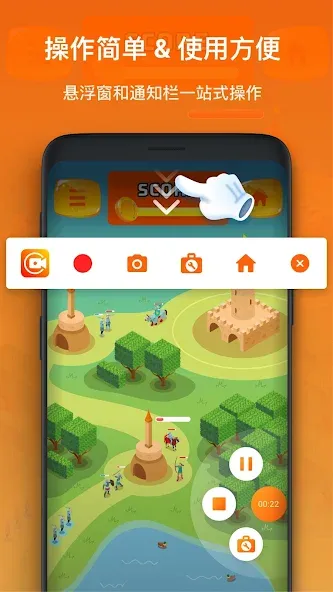
Floating control overlay panel for convenient recording management.
Real-time screen drawing brush tool for annotations.
Compact MediaStyle notification controls tailored for Android 14.
Automatic file naming with custom templates.
Self-healing audio system that recovers if the system blocks capture.
Post-recording notifications with live video thumbnails.
Works entirely offline with no internet access or ads.
Advantages and disadvantages
Pros
No in-app advertisements are included
Supports a handful of basic editing options
Very little hard drive memory is required
Provides support for numerous languages
Cons
Permissions might be required to activate this app on certain devices
Recorded videos cannot be compressed
How to Use
Open Screen Recorder and grant the required permissions for screen capture, audio, storage, and camera if you plan to use facecam.
Set your audio source. Choose Microphone for voiceover, or select Internal audio on Android 10 and above for apps that allow playback capture. After this, choose resolution and frame rate if needed.
Enable the Magic Button or add the Quick Tile to your notification shade for fast control. Then position the floating button where it does not block key on screen elements.
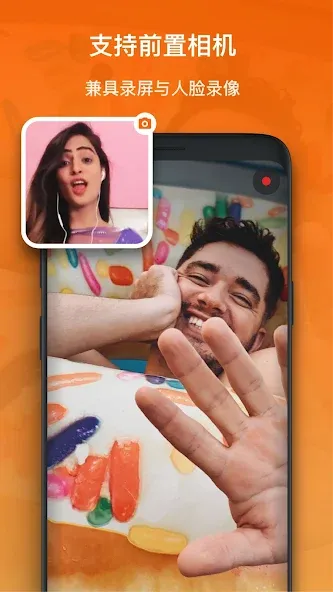
Start recording and perform your task. You can draw on screen to highlight steps, and you can double tap the facecam to switch cameras. So when you finish, tap Stop from the Magic Button or the notification.
Trim the start or end using the built in editor. Then save the file to your chosen folder, including an SD card if available, and share it as required.
User comments
The audio quality is very clear! The video quality is also great, and there’s no frame dropping at all!! I’ve finally found a screen recording app that works perfectly for my phone! It does take up quite a bit of storage space, but that’s not an issue as long as you clear it out regularly.
How come part of my recording is missing? The video froze, but the audio kept playing—did I do something wrong? Regardless, the app itself is genuinely excellent.
This app is super useful! The recorded video quality is incredibly sharp, and the frame rate is rock-solid. Plus, it’s completely free! Anyone saying it’s not good must be a paid shill—everyone is going to love this app!
Summarize
Screen Recorder boasts a user-friendly edge that is ideal for novices. It provides the ability to record a live display screen while static screenshots are also supported. The user can select from a host of languages and this bundle is also able to work in synergy with most third-party face cam software.